Usage Guide
A start-to-finish walkthrough: onboard a clinical trial, put Carmen in front of patients, and review what happened. Written for study coordinators and clinical staff; no programming required.
Getting started
How it works
MediMentor runs patient consultations through Carmen, a virtual health advocate with a video avatar (that is how Carmen introduces herself to patients). The whole pipeline looks like this:
- Onboard a trial. Staff creates the trial, uploads its documents, extracts and verifies the structured record, and activates it.
- Invite a patient. Staff sends the patient a one-time link tied to that trial.
- The consultation. The patient talks to Carmen, who answers from the trial's reviewed content.
- Review. Staff reads each conversation on the dashboard, including the full transcript.
The rest of this guide follows that exact order.
Signing in
All staff pages are protected with a shared password. When you open any admin page your browser shows a sign-in prompt:
- Username:
admin(always) - Password: ask your administrator (it is configured per deployment)
| Page | What it's for |
|---|---|
/admin | Trial list, the starting point for everything below |
/admin/invites | Create and track patient invite links |
/dashboard | Review patient conversations and read transcripts |
/docs | This documentation |
Patients never sign in. They use a one-time invite link (see Invite a patient).
Onboarding a trial
Draft vs. active
Every trial is in one of two states:
- Draft: visible only to staff. Carmen does not know about it and patients cannot be invited to it.
- Active: Carmen answers questions about it, and you can create patient invites for it.
A new trial starts as a draft and becomes active in five steps: create, upload documents, extract, review, activate. Each step is described below in order.
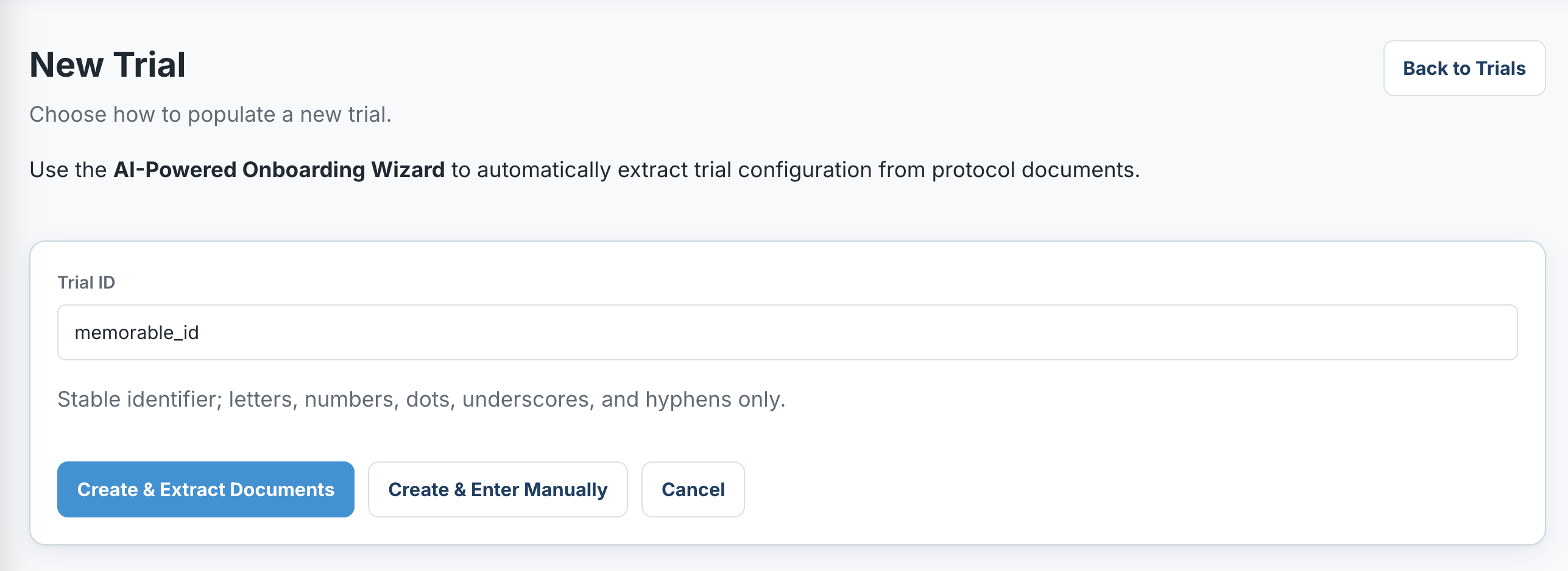
Step 1: Create the trial
On /admin, choose New trial. You only need a
trial ID: a short, permanent identifier such as
acadabra-her2-nsclc (letters, digits, dots, dashes,
underscores; it cannot be changed later). The ID must be unique: if it
is already taken, the form warns "Trial ID already exists" and nothing
is created. Then pick one of the two buttons:
- Create & Extract Documents (recommended): opens the onboarding wizard, which walks you through steps 2 to 5.
- Create & Enter Manually: takes you straight to the trial detail page to type everything yourself (skip to step 4).
/admin/trials/new.Step 2: Upload documents
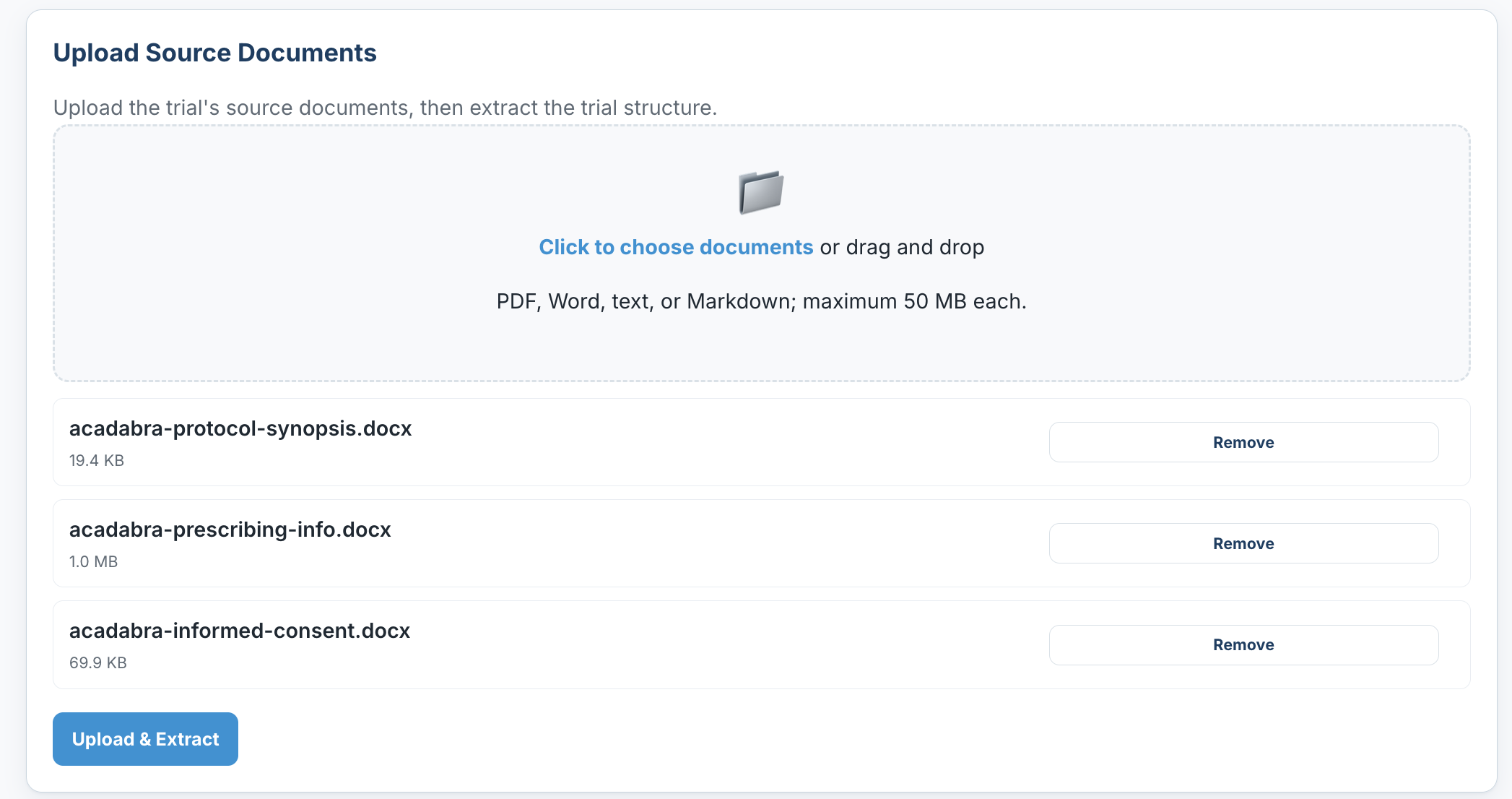
On the trial's onboarding or detail page, upload the source documents (protocol synopsis, prescribing information, consent forms, and so on).
Each document row shows a colored status label:
| Status | Meaning |
|---|---|
uploaded | Stored, but Carmen can't use it yet (not indexed) |
indexed | Searchable by Carmen during consultations |
failed | Indexing failed; the row shows the error. To fix it: delete the failed document, correct the file on your computer, upload the corrected file, then click Index & Activate again. |
You can download the original file or delete a document at any time. You can also add documents later, after the trial is already set up or live: open the trial's Documents tab, upload the file, and click Index & Activate so the new document is indexed. Any document change puts the trial back into draft until you do.
Step 3: Extract trial information
Extract reads the uploaded documents with an AI model and pre-fills the trial's structured sections: general info, study details, dosing, visit schedule, inclusion/exclusion criteria, prohibited medications, and side effects.
- Extraction overwrites the sections it manages with what it found, so run it before manual corrections, not after.
- Values that don't pass validation are reported as warnings next to the affected section and skipped, so one bad value never blocks the rest.
- Extraction never activates anything: the result is a draft for you to review.
Step 4: Review and edit the record
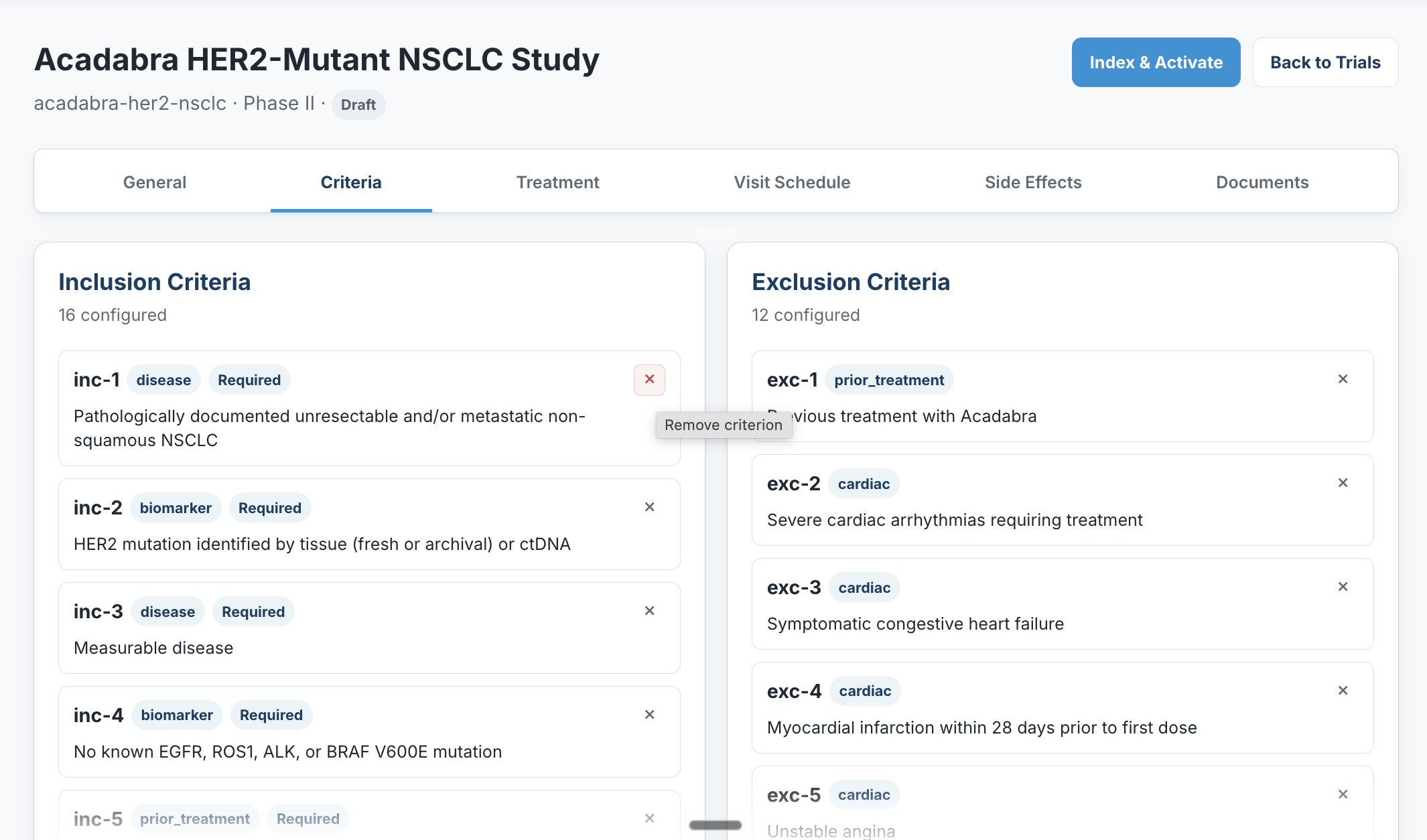
The trial detail page shows the record in tabs: General (trial and study information), Criteria (inclusion and exclusion), Treatment (dosing and prohibited medications), Visit Schedule, Side Effects, Documents, and Infographics (see Image infographics). Edit any tab and save. Each save checks the values (for example, visit days must be positive whole numbers and criterion IDs must not repeat). If something is invalid, a warning appears at the top of that section naming the exact field.
Step 5: Activate
Activate does two things in one step: it indexes every uploaded document so Carmen can search them, then flips the trial to active. If any document fails to index, the trial stays in draft and the error is shown. Nothing goes half-live.
Once active, the trial appears in the invite page's trial list and Carmen starts using its content. You're ready to invite a patient.
Image infographics
The trial's Infographics tab holds images Carmen may show the patient on screen during a consultation, for example a treatment schema or a diagram of how the drug works. Upload an image with three text fields:
- Title: a clear name, e.g. "HER2 Mutation Explained". Carmen matches patient questions against it, so name it the way a patient would ask.
- Caption: one line shown under the image.
- Description: what the image shows, in a sentence or two. This is the main matching text; a good description makes Carmen show the right image at the right moment.
Each uploaded infographic can be edited or deleted from the same tab. Carmen only ever shows images uploaded here; she cannot invent or fetch pictures from anywhere else.
Running consultations
Invite a patient
Patients access Carmen through one-time invite links
created on /admin/invites:
- Pick the (active) trial the patient belongs to.
- Optionally add a label for your own bookkeeping, e.g. "Pt. 0142 (Dr. Weber's clinic)". The patient never sees it.
- Copy the generated link and send it to the patient through your usual channel.
Invite links are:
- Single-use: the first person to start the consultation consumes the link.
- Time-limited: they expire 7 days after creation.
| Status | Meaning |
|---|---|
available | Not yet used, not expired |
used | Redeemed (shows when) |
expired | Never used within 7 days; create a new one |

/admin/invites.Test it yourself
To experience exactly what the patient will, use the test session button on the admin pages: it opens the consultation console for a chosen trial without consuming an invite. Test conversations show up on the dashboard like real ones, so end them properly (or note the time) to keep them easy to tell apart.
The patient experience
What the patient experiences after opening their invite link:
- A welcome page introduces the trial; they press start.
- They choose their advocate: a carousel of avatar faces with arrows to browse. Each face speaks a short greeting so the patient hears the voice before deciding (hover or tap a face to hear it again). The chosen avatar becomes Carmen for this consultation.
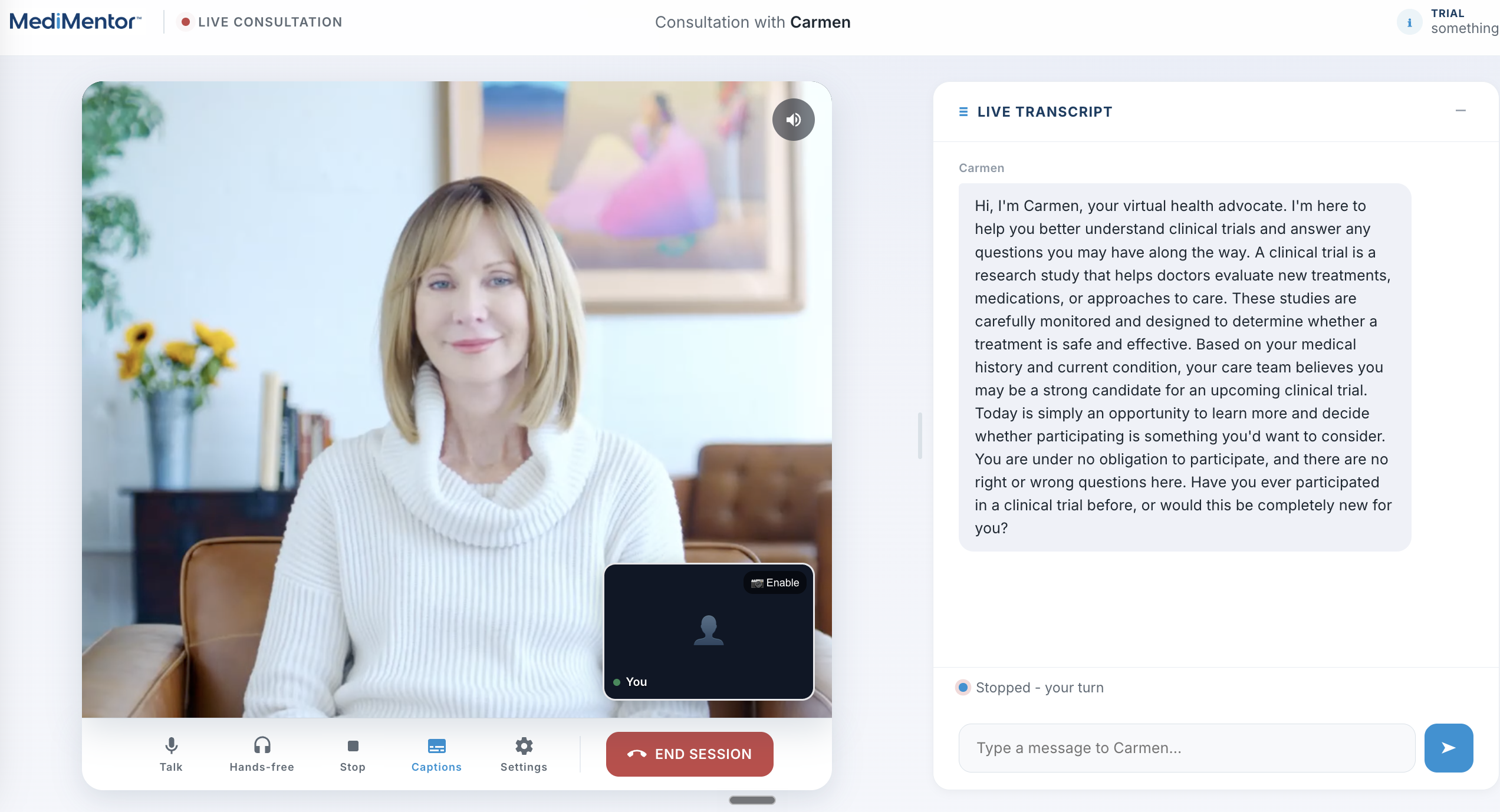
- Carmen appears as a video avatar ("Connecting your advocate…" shows while the video starts) and greets them with a short introduction.
- They talk naturally (or type). Carmen answers from the trial's curated record and documents: side effects, visit schedule, dosing, eligibility questions, practical concerns.
- When an answer involves a list (side effects, visit steps, questions to ask the doctor) or one of the trial's image infographics, Carmen puts an on-screen card over her video and speaks the short version. The card closes with its X or when the patient asks the next question.
- The patient can interrupt Carmen mid-sentence (barge-in) just like a phone call; Carmen stops and listens.
- Ending the consultation finalizes it (see Reviewing) and their link cannot be used again.
- Sessions stay valid for 7 days: a patient can close the tab and come back with the same link on the same device.
- Carmen is instructed to stay within the trial's reviewed content and to defer medical judgment to the care team.
Reviewing
Conversations
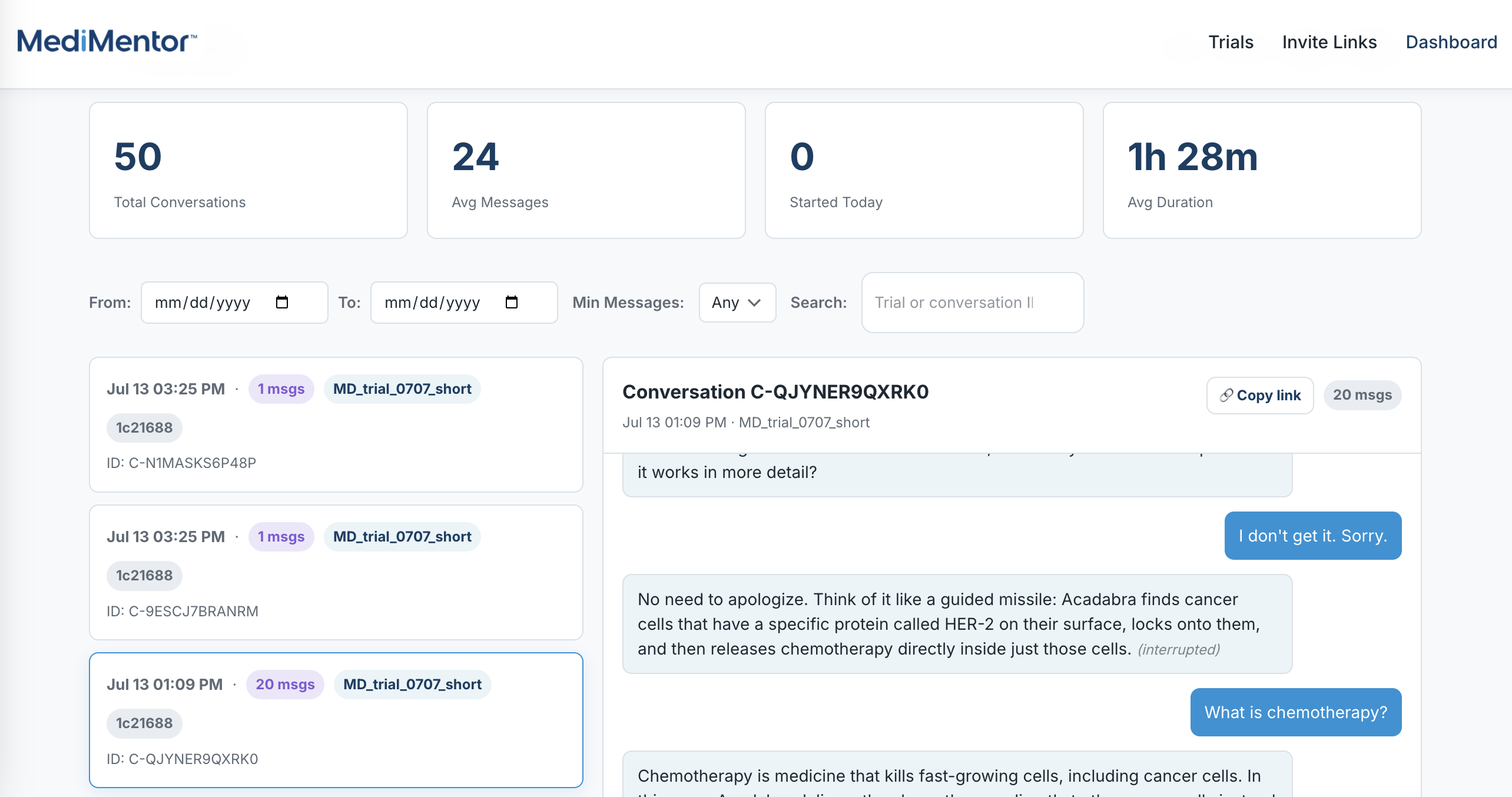
/dashboard lists every conversation that has stored
history, including ones still in progress. Each row shows the trial,
the start time, and the message count. Open a conversation to read its
full transcript.
The top of the page shows four totals across all conversations: how many there are, the average number of messages, how many started today, and the average duration. You can filter the list by minimum message count, or search by trial or conversation ID.
The transcript records more than the words:
- Timestamps: a small time above each message, in your local time.
- Avatar face: a thumbnail beside Carmen's messages showing which avatar spoke that turn (hover for its name). If the patient switched avatars mid-conversation, the face changes where the switch happened.
- Infographic chips: a pill under Carmen's message reading "Infographic shown: …" marks every on-screen card the patient saw. Click it to expand the card in place: the list items, the coordinator contact, or the image itself, with the time it was displayed. An amber "Infographic failed to display" pill means Carmen attempted a card that never rendered; the patient saw nothing there.
- (interrupted): a quiet mark on a message the patient cut off. The stored text is trimmed to what they actually heard.
Download saves the selected conversation as a single PDF that looks exactly like the on-screen log, including the expanded cards and images, with times in your timezone. Copy link copies a direct link to that conversation for sharing with colleagues (they sign in with the same admin password).
Upkeep
Updating a live trial
Any change to an active trial (editing a section, uploading or deleting a document) automatically puts it back into draft. This is a safety feature: staff must explicitly re-activate (and thereby re-index) before patients see the changed content.
- Deactivate immediately returns an active trial to draft, for example while making corrections. Patients with open sessions stop getting that trial's content on their next question.
- Delete removes the trial together with its documents and search index. Conversations are kept.
Resets
Two administrative reset operations exist for recovery scenarios. Both are irreversible, so read carefully:
| Operation | Deletes | Keeps |
|---|---|---|
| Reset vectors | Carmen's document search index (all trials) | Trials, documents, conversations |
| Reset all | All trials, all documents and files, the search index | Conversations (audit trail) |
Troubleshooting
| Symptom | Likely cause and fix |
|---|---|
| Carmen doesn't mention newly uploaded content | Documents are uploaded but not indexed. Open the
trial and click Index & Activate. |
| Patient link says "invitation expired" | The 7-day window passed. Create a new invite. |
| Patient link says "already used" on a new device | Links are single-use per device. Create a new invite. |
| Trial missing from the invite page's trial list | Only active trials can be used to invite patients. Activate the trial first. |
| Activation fails with an indexing error | One or more documents could not be read or indexed. Open the
Documents tab and find the row marked failed.
Delete that document, fix the file itself on your computer, upload
the corrected version, then click Index & Activate
again. |
| "Invitation required" when opening the consultation directly | The console needs a session. Enter via an invite link or a test session, not the bare URL. |
| Carmen shows the wrong image, or none, when asked | She matches the patient's words against each infographic's title and description. Rename vague titles ("her 2 mutation") to how a patient would ask ("HER2 Mutation Explained") and write a real description. |
| "Infographic failed to display" chip in a transcript | Carmen attempted an on-screen card that never rendered, so the patient saw nothing there. If it recurs for the same content, report the conversation link to the development team. |